Enabling classes on Embodia
Introduction
Embodia allows you to schedule classes that patients can register for directly on your dedicated online booking portal:
- Classes can be virtual (for group classes, this requires a Zoom or Google Meet account) or in-person;
- Classes can be free of charge or paid;
- Classes can be made available to anyone or restricted to your current patients;
- You can allow patients to register without payment, or you can require patients to provide their payment information to be able to register (without being charged on registration), or you can require upfront payment to register for the class;
Before getting started, make sure that you have set up your dedicated online booking portal (see the "Setting a subdomain" help article for more details), otherwise, patients will not be able to find your classes.
Granting permission to a practitioner to schedule classes
The actions described below require a Manager permission on your clinic.
Before being able to schedule classes, you need to grant permission to your practitioners to schedule classes. We also highly recommend setting up dedicated services for your classes that will make it easier for you to tailor the classes' settings to your needs.
By default, scheduling classes is disabled on your account. You can enable scheduling classes for every practitioner in your clinic, or you can enable it just for a select number of practitioners. On the permissions page, you can choose to enable scheduling classes as a default permission (i.e. any practitioner in your clinic will have the capability to schedule a class) or only enable it for certain practitioners.
Once the permission to schedule classes is enabled on a practitioner's account, a new tab (My classes) will show up under Consults in the top bar.

Setting up dedicated services for your classes
When scheduling a class, you need to associate it with a service. We have gone through how to set up services in a previous lesson in this course (Setting up your services). We highly recommend creating dedicated services for your classes. This will allow you to:
- Provide custom settings for your classes without interfering with the settings used on regular consults;
- Run dedicated reports for your classes.
If you set up a dedicated service for your class and this service will not be used for regular one-on-one consults, make sure to keep the "Available in online booking" unchecked. This will prevent patients from selecting these services in online booking that are meant for regular consults. Keeping the "Available in online booking" will not affect the ability of patients to register online for the class as this setting is disregarded for classes.

There, you can also override the default clinic settings (if you wish to) for who can book the class and whether they need to provide their payment info.
Classes online booking settings
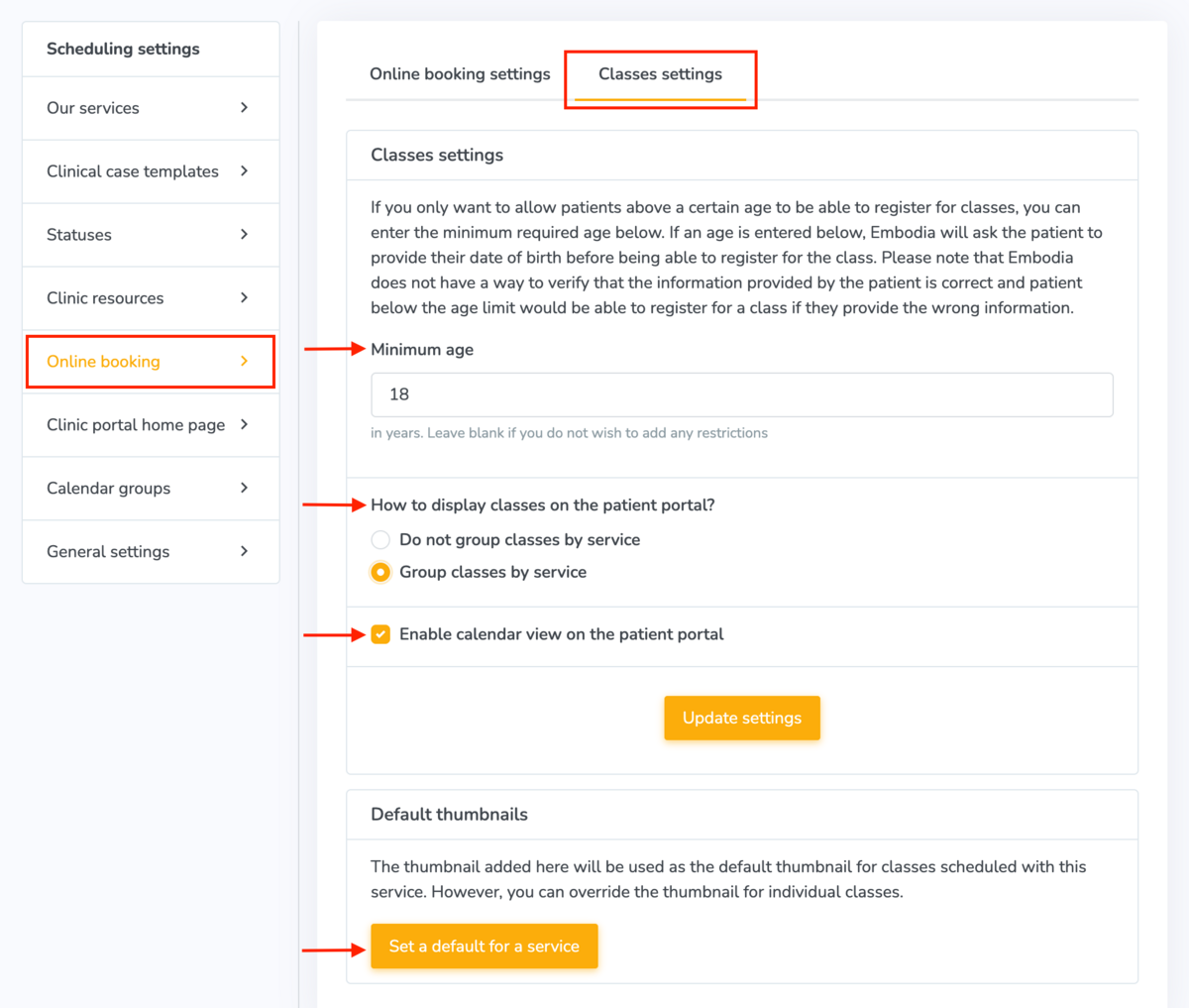
You can change the classes online booking settings by going to My clinic > Scheduling settings > Online booking > Classes settings.
There you can:
- Set a "Minimum age" for patient to be able to register for your classes
- Change how classes are displayed on the patient portal: By default, all classes will be displayed together on the patient portal regardless of the service. You can choose to group classes by service, so that the patient would first need to select the service, and then they can see the classes for this service.
- Enable the calendar view on the patient portal
- Set a default thumbnail for each service